
How to move a family into a project: step-by-step guide
Contents
In Nyshporka 0.37 one Workshop can hold several projects: your family, your wife's family, a client's commission. If you installed Nyshporka earlier, your family lies directly in the workspace, without a project. This guide is about how to move it into a project. Everyone who updates from earlier versions has to do this.
The move is done with one command, but we have described every step: what to check before it, what you will see on the screen, what to do afterwards and how to put everything back.
The move is a required step of the move to 0.37
Move your family into a project right after the update, even if you keep only one family.
After the update the old workspace still opens and works: the same canon, the same read texts, the same commands. We kept this so that you can move the family when it suits you, and not the very minute you update. But Nyshporka 0.37 and later releases are built around a Workshop with projects, so a family that lies directly in the workspace is a transitional state, not a way of working.
- You keep one family — move it anyway. The workspace will become the same as for those who install Nyshporka for the first time.
- You are taking on a second family or a commission — first move the first one, and only then create the second. Otherwise the first family stays mixed with the Workshop, and Nyshporka will keep reminding you about it.
What moves and what stays
The move copies nothing and rereads nothing. What belongs to the family itself moves into the folder projects/<name>, and the shared material stays in place and is still available from any project.
| Stays in the Workshop, shared by all projects | Moves into the family's project |
|---|---|
| case scans | the canon: persons, families, places, sources |
| read texts | the family profile: the surname and all its spellings |
| the case registry | verdicts on finds, candidates |
| the record of sheets looked at | the search log: what has already been searched for the family |
| reading models, the cloud | your view of the sheets: which of them concern the family |
| research reports and notes | |
| the family site (its data; the site itself is rebuilt) | |
| documents that the canon cards refer to |
The read texts take the most space, and they do not move. That is why the move takes minutes even on a large workspace.
Before the move
Go through this list. If you skip something, Nyshporka will not start the move and will tell you what is wrong. Nothing will break, but it is better to prepare at once.
- Update to 0.37 and tell your assistant (Claude or Codex): “move to the new version”.
- Wait until everything is quiet. No case should be being read, nothing downloaded from an archive or given to Supriaha. Nyshporka will not start the move if anything in the family folders changed in the last 10 minutes.
- Collect everything from the cloud. If something is being read in the cloud or a rented card has not yet been released, wait for it to finish, collect the result and release the card (the “Cloud” screen).
- Save your edits. If the workspace keeps a change history, everything in the family folders must be saved. Nyshporka saves the canon itself. If the plan says something is unsaved, ask the assistant: “save the history” (
nysh history save). - Check the free disk space. Before the move Nyshporka makes an archive of everything that moves. It goes into a folder next to the workspace: if the workspace is
D:\Нишпорка, the archive will be inD:\Нишпорка-adopt. You need roughly as much space as what is moving takes, plus a tenth more. The plan will show the exact number. - Think of a project name. It will become the name of the folder: lowercase Latin letters, digits and a hyphen, up to 48 characters. For example,
ivanenkoorrid-ivanenkiv. The proper name with colour and mark you will give later.
With the assistant or with the button
A family can be moved in two ways.
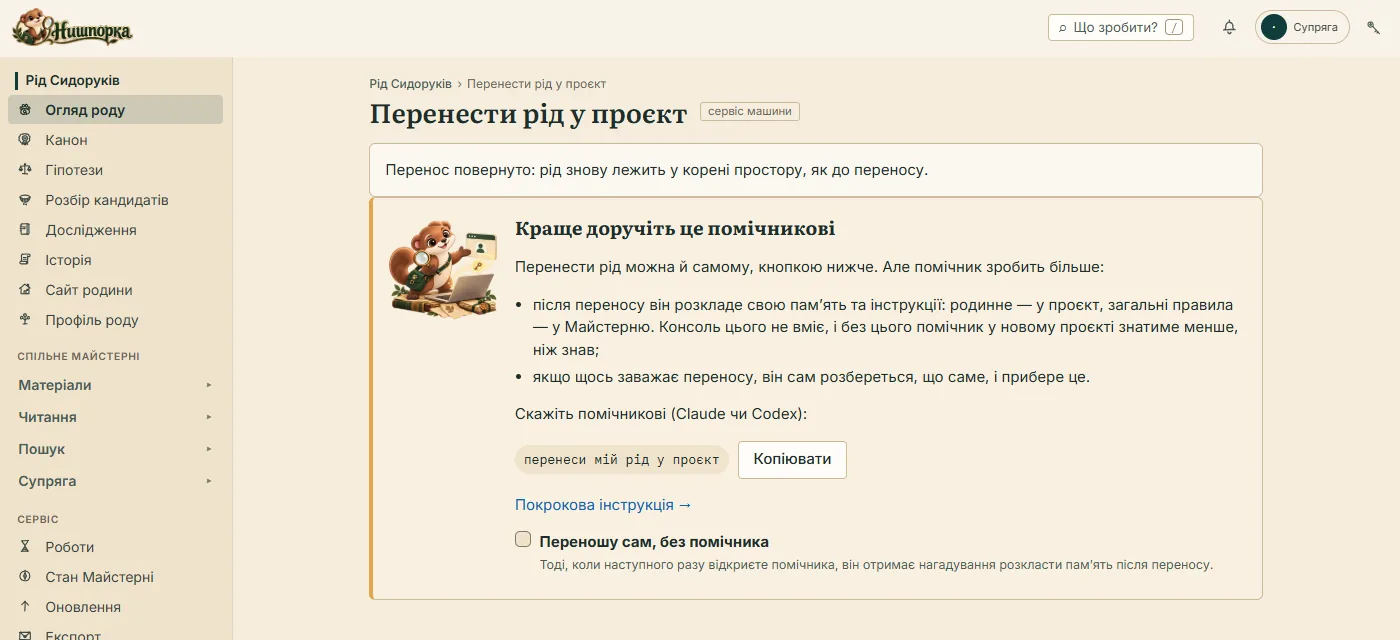
With the assistant — this is better. Tell it: “move my family into a project”. It will show the plan and will do nothing without your “yes”. The assistant also does what the button cannot:
- after the move it sorts its own memory and instructions: family matters go into the project, general rules into the Workshop;
- if something blocks the move, it will work out what it is and clear it.
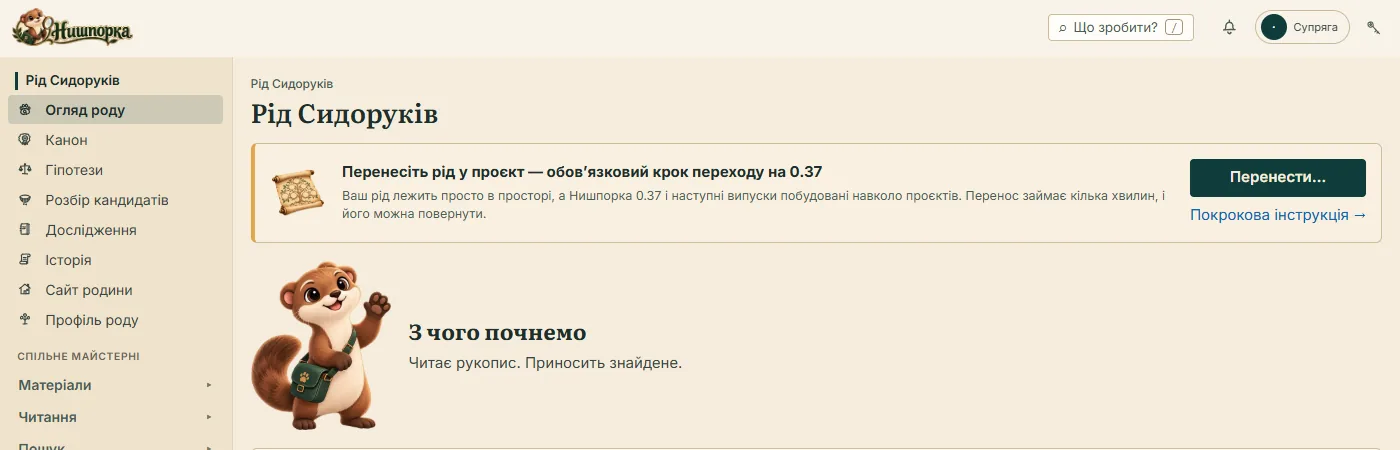
With the button in Nyshporka — without the assistant. At the top of the family overview there is a banner “Move your family into a project” and the button “Move…”.
The move screen first advises once more to leave this to the assistant. To open the steps, tick “I’ll move it myself, without the assistant”.
Then:
- Project name. The name, the folder in Latin letters (Nyshporka will fill it in from the surname) and the folder for the archive.
- Check. “Show the plan” shows what will move and whether anything is in the way. If there are unsaved edits, a “Save” button will be next to it.
- Move. Nyshporka closes for a minute or two, moves the family and opens again. The browser tab refreshes by itself, and you see what to do next.
The next time you open the assistant, it will get a reminder to sort its memory after the move. Everything can be put back right there, with the “Put it back as it was” button.
Below is the same with commands, for those who work in a terminal, and in more detail about each step.
Step 1. Look at the plan
The simplest way is to tell the assistant: “move my family into a project”. It will show you the plan and will do nothing without your “yes”.
If you do it yourself, in a terminal in the workspace folder:
nysh project adopt ivanenko
Nothing changes at this step. Nyshporka only shows what will move and whether everything is ready:
Переїзд кореня в проєкт «ivanenko»: 3 шляхів, 4 файлів, 0.0 МБ
  data/canonical                                    2 ф.       0.0 МБ  (git: 2)
  config/research_profile.yaml                      1 ф.       0.0 МБ  (git: 1)
  reports/research                                  1 ф.       0.0 МБ  (git: 1)
  погляд на сторінки: 0 сторінок → projects/ivanenko/data/views
  архів: D:\Нишпорка-adopt (вільно 56.6 ГБ)
Далі: nysh project adopt ivanenko --apply
This is a plan from a trial workspace with two persons in the canon. Yours will be longer. How to read it:
- the lines with paths — what will move: how many files and megabytes in each folder;
- “погляд на сторінки” (the view of the sheets) — how many sheets you marked as concerning the family;
- “архів” (the archive) — where the archive will go and how much free space there is;
- “Далі: …” (“Next: …”) — the plan is clean, you can move.
Step 2. Clear the obstacles
If something is in the way, the plan shows it as a line with a red mark 🔴, and there will be no “Далі” line. What each obstacle means:
| The plan says | What to do |
|---|---|
| uncommitted changes in the paths to move | save your edits: “save the history” or nysh history save |
| something is writing into the paths to move right now | reading, a download or another assistant session is still working somewhere — wait until it finishes |
| cloud runs are holding a machine | collect the result and release the card on the “Cloud” screen |
| the archive needs ~N GB, and M GB are free | name another folder with space, outside the workspace: --archive E:\архіви |
| the folder projects/… already exists | choose another name |
| the assistant's memory for projects/… already exists | the assistant has already written something under this name — ask it to move that aside |
| a card refers to …, and it stays in the Workshop | someone has set this folder to stay; the assistant will tell you how to remove that |
After clearing an obstacle, show the plan again. Move when there is not a single 🔴 line in it.
Step 3. Move
Tell the assistant “yes, let's move” or do it yourself:
nysh project adopt ivanenko --apply
Nyshporka does everything in turn and writes each step into a log:
- Makes an archive of everything that moves and checks every file in it. Until the archive is checked, nothing moves.
- Creates the project folder.
- Moves your view of the sheets.
- Moves the family folders. The change history goes together with the files.
- Fixes the evidence links, so that every crop knows which card of which project it belongs to.
- Copies the assistant's memory into the project. The original stays in place.
- Marks the workspace as a Workshop.
At the end Nyshporka prints where the family moved to, the stamp of the move and where the archive lies. Write down the stamp and the path to the archive.
Step 4. After the move
- Restart Nyshporka. Close the app and open it again. A switcher will appear at the top: the Workshop or your family.
- Give the project a name. At first the project is called by the folder name. On the family overview press “Name, colour and mark” and enter a human name, for example “The Ivanenko family”.
- Check that everything is in place. The family overview should show as many persons in the canon as before the move. The Case library — the same cases with the same “Searched” marks.
- Rebuild the family site, if you have one: the “Family site” screen → “Rebuild”. The site build itself does not move, because it is built again from the canon.
- The assistant now works in the project folder. It picks up the memory, instructions and state of the family at the start of a session, so to work on the family open it there:
nysh project open ivanenko --agent claude(orcodex). Family commands from the Workshop root now need--project ivanenko. Without it they refuse and do not read an empty canon. - Let the assistant sort the memory. In the first session it will sort the notes: family matters stay in the project, general working rules go to the Workshop. Before deleting anything, it will show you the list.
Do not delete the archive of the move until you are sure everything is fine.
How to put it back
If something went wrong or you changed your mind:
nysh project adopt ivanenko --rollback
Nyshporka will put everything back by the log, in reverse order: the family folders, the view of the sheets, the evidence links, the workspace mark. The workspace will become as it was before the move. We checked this on a trial workspace: after the rollback the files lie in their old places.
It is simplest to roll back right away, while you have not yet changed anything in the project. If there were several moves, a particular one is chosen by its stamp: --stamp <мітка>. And if something is completely broken, you have the archive with the checked files.
A second project
Now you can create the next family or commission. On the Workshop overview press “New project” and go through three steps: family or order, name and surname, colour and mark. The new project at once sees everything that has been read in the Workshop, and for it the cases count as not yet searched.
If the project is a client's commission, Nyshporka marks the new cases in it as private by itself: without your separate decision they will not go to Supriaha and will not appear on the public site.